Responsive WebsitesIT and TechnologyMobile TechnologiesFrontend DevelopmentWebsitesCSSMarketing on the Internet14 min czas czytania19 251 znaków2606 słów
Find out how to apply responsive CSS to your business
Learn more about CSS Responsive For Beginners. A practical guide with concrete tips and examples. Learn best practices and avoid types

Redakcja Digital VantageYour Partner in Business, Digital Vantage Team · Digital Vantage team is a group of experienced professionals combining expertise in web development, software engineering, DevOps, UX/UI design and digital marketing. Together we carry out projects from concept to implementation - websites, e-commerce stores, dedicated applications and digital strategies.
Our team combines years of experience from technology corporations with the flexibility and immediacy of working in a smaller, close-knit structure. We work in agile methodologies, focus on transparent communication and treat each project as if it were our own business.
The strength of the team is the diversity of perspectives - from systems architecture and infrastructure, frontend and design, to SEO and content marketing strategy. As a result, the client receives a cohesive solution where technology, aesthetics and business goals go hand in hand.
Publikacja
Aktualizacja
What do you find in the article?
- Mobile statistics - Did you know that more than 60% of traffic to Polish online stores now comes from mobile devices? If your website is not responsive, you could be losing up to 40% of potential customers.
- Media queries without secrets - Three key breakpoints (768px, 1024px, 1200px) can cover 95% of the most popular devices. This is enough for most companies to serve a wide range of users.
- Flexbox for business - Wondering how to create a responsive menu or product gallery without deep knowledge of CSS? Flexbox provides a ready-made solution that you can implement with ease.
- ROI of responsiveness - An investment of 3,000 to 8,000 zlotys in rewriting a company website for responsive design can pay for itself in 3-6 months. Better conversions make a difference.
- Testing tools - There are free ways to check if your site is responsive in the browser, and five top apps for testing on real devices.
Introduction: Why responsiveness is a must in today's business
When was the last time you checked your website on your phone? If your users have to zoom in on text with their fingers or scroll sideways, you're probably losing customers every moment. In today's world, where responsive design is an integral part of online business, failing to do so can be costly.
Statistics can tell you a lot: in Poland as much as 60% of web traffic comes from mobile devices, and globally this percentage reaches 70%. This means that most of your potential customers are browsing your site on a smartphone or tablet.
Did you know that responsive design can significantly impact sales results? Studies show that sites tailored for mobile devices achieve up to 67% higher conversions than those that are not responsive. Amazon, for example, estimated that every second of delay in page loading could cost them $1.6 billion a year.
Lack of responsiveness is a real loss. Since 2015, Google has been lowering the positions of non-responsive sites in search results. Users leave such sites within just 3 seconds. This means less traffic, weaker positioning and lost orders.
Investing in responsive CSS can bring tangible benefits: better positioning in Google, higher conversions, greater customer trust and an edge over the competition. A customer who can easily find the information they need on your site over the phone is more likely to make a purchase.
In this article, I will show you specific CSS techniques that will help make your site look great on any device. Without having to use complicated frameworks and without rewriting your entire site from scratch.
Responsive CSS basics - what every entrepreneur should know
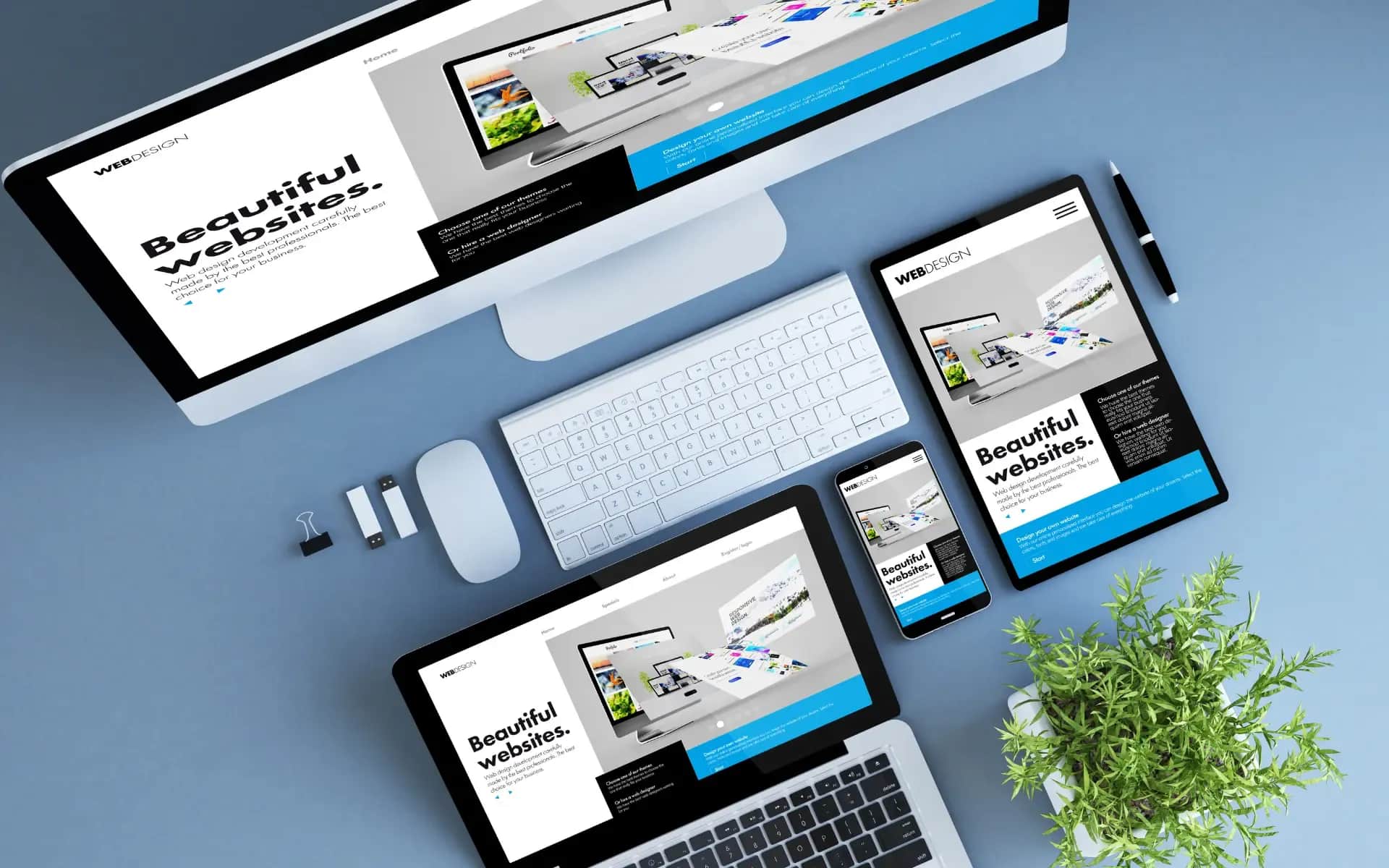
Responsive design is an approach that makes a website automatically adapt to the size of the user's screen. It can be compared to water in a dish - the website takes the shape of the device on which it is displayed. For example, a menu that is visible on a computer as horizontal, on a phone turns into a so-called hamburger menu.
Often responsive design is confused with adaptive design. Adaptive design is like having three different suits: one for a 15-inch laptop, one for a tablet, and one for a phone. Responsive design, on the other hand, is one suit that adapts itself to all these devices. From a business perspective, responsive may be more cost-effective.
Key checkpoints (breakpoints) mark the points at which the page layout should change. The most commonly used are:
- 320px - the smallest phones
- 768px - tablets vertically
- 1024px - tablets horizontally, small laptops
- 1200px - desktops
Viewport is the visible area of the page in the browser. If you don't configure it properly on a phone, the browser may try to fit the entire "desktop" page, making everything very small.
The viewport meta tag tells the browser: "treat the screen like it's really wide". Without this line of code, responsive CSS simply won't work:
1<meta name="viewport" content="width=device-width, initial-scale=1.0">.
How to check the responsiveness of your site
The easiest way is to use the developer tools. In Chrome, all you have to do is press F12, click the phone icon and test different screen sizes. You don't need to be a developer - just check that all elements are readable and easy to click.
Popular online tools, such as Responsinator.com and Am I Responsive, show how a site looks on different devices at the same time. Google also offers a Mobile-Friendly Test, where you get a detailed diagnosis after entering your site address.
When checking, pay attention to whether text is readable without zooming in, whether menus work on touch, whether forms don't "escape" off the screen, and whether the page loads quickly. Such problems can directly lead to lost customers.
Media queries - the foundation of responsive CSS
Media queries are key tools in CSS that help the browser adapt the look of a page to different screen widths. It's a bit like having different cabinets for different occasions. When someone visits the site on a phone, mobile styles are activated, and on a tablet, tablet styles are activated.
The basic syntax is as follows:
1@media screen and (max-width: 768px) {2 .menu {3 display: block;4 }5}
This rule states: "for screens up to 768px wide, display the menu as a block".max-width means "maximum so much," whilemin-width is "at least as many." Most projects are based on 3-4 major checkpoints.
In business practice, breakpoints based on actual devices work well: 576px (large phones), 768px (tablets), 992px (laptops), 1200px (desktops). These values cover about 90% of customers' devices.
The mobile-first approach involves writing styles for phones first and then extending them to larger screens. Desktop-first, on the other hand, works the other way around. For business, mobile-first is sometimes more beneficial - you start with what most customers see, which also makes it easier to optimize performance.
Practical examples of media queries
For tablets (768px-1024px), a two-column layout is often used:
12@media (min-width: 768px) and (max-width: 1024px) {3 .product-grid {4 grid-template-columns: repeat(2, 1fr);5 gap: 20px;6 }7}
On smartphones (up to 767px), a single-column layout with larger buttons is usually preferred:
1@media (max-width: 767px) {2 .button {3 padding: 15px 30px;4 font-size: 18px;5 }6}
Large screens (above 1200px) offer the possibility of more columns:
1@media (min-width: 1200px) {2 .services {3 grid-template-columns: repeat(4, 1fr);4 }5}
Typical mistakes when using media queries
A common mistake is to create too many breakpoints. Some people add a breakpoint every 50px, which complicates the code and makes it harder to maintain. Three well-thought-out checkpoints are usually enough for 95% of projects.
Not noticing the orientation of the device can lead to problems, especially with horizontally rotated tablets. A phone horizontally can be a similar width to a tablet vertically. It is then worth usingorientation: landscape ororientation: portrait.
Testing only in developer tools can be misleading. Real devices may work differently - they have different pixel densities and use different browsers. It's a good idea to test the performance on real phones and tablets before publishing.
Flexbox - flexible layouts without the headache
Media queries are a solid foundation, but it is Flexbox that allows elements to adapt easily. Think of a traditional layout like furniture attached to a wall - you have to loosen screws to move it. With Flexbox, it's like furniture on wheels - it finds the perfect place by itself.
Flexbox's biggest advantage is its ability to automatically split space. Have three elements in a row? Flexbox will evenly align them, regardless of the width of the screen. If one element changes, the rest will automatically adjust. No more precise percentage calculations and dead spots on medium resolution screens.
The basic features of Flexbox can be encapsulated in three lines of code that solve most of the problems of element alignment.display: flex activates flexible mode.justify-content: space-between Evenly distributes the elements.align-items: center It centers them vertically. You no longer need to use float, clear or position: absolute.
1.navigation {2 display: flex;3 justify-content: space-between;4 align-items: center;5}
Creating responsive menus is often a challenge. With Flexbox, all you need to do is useflex-wrap: wrap, and the items themselves will move to the next line when you run out of space. On large screens you have a horizontal menu, and on smaller screens it breaks at logical points.
Column systems gain incredible flexibility withflex-grow. For example, the main content may haveflex-grow: 2, a sidebarflex-grow: 1, which means splitting the space in a 2:1 ratio, regardless of the screen resolution. Sidebar will always occupy one-third of the space, the rest will belong to the content.
Practical applications of Flexbox in business
Product galleries are no longer problematic. Product cards with different length descriptions?align-items: stretch will make them all the same height, and the prices will always be at the bottom, regardless of the length of the product name.
The "about us" sections with team profiles get a professional look thanks to automatic alignment. If one employee has a longer experience description, the other tabs will adjust their height.justify-content: space-evenly Evenly distribute them.
Footers are a classic example of where Flexbox really shines.justify-content: space-between will place the logo on the left, the menu in the middle, and the contact on the right. On mobile devices, everything can be arranged vertically thanks to theflex-direction: column In the media query. Forget about floats, which can go awry.
Flexbox solves many layout problems you didn't even think of before. Centering elements vertically, which used to require various tricks, is now a matter of a single property.
CSS Grid - advanced grid layouts
Flexbox is fantastic when you think of a one-dimensional layout. But what if you want full control over rows and columns at the same time? CSS Grid comes to the rescue to create complex layouts that previously required frameworks or complicated tricks.
When you are planning a two-dimensional layout, CSS Grid is probably the best choice. Want to make a product grid for your store? Use Grid. A home page with a header, sidebar, main content and footer? Grid will work perfectly. Flexbox, on the other hand, is better suited for linear layouts, such as navigation, buttons in a row or simple sections.
To create a basic grid, you need two properties.grid-template-columns: repeat(3, 1fr) forms three equal columns. In turngrid-gap: 20px provides spacing between elements.1fr means one part of the available space, so three columns1fr is an equal 1:1:1 split.
1.product-grid {2 display: grid;3 grid-template-columns: repeat(3, 1fr);4 grid-gap: 20px;5}
On smaller screens, simply adjust the number of columns with the media query:
1@media (max-width: 768px) {2 .product-grid {3 grid-template-columns: 1fr;4 }5}
The difference betweenauto-fit aauto-fill may seem subtle, but it has a significant impact on appearance.Auto-fit Stretches existing elements to fill the space, while theauto-fill adds empty columns, even if there are no elements in them. In practiceauto-fit often gives a more aesthetic effect.
Examples of using Grid in commercial projects
Your service portfolio can gain readability with Grid. Each service presented in a separate tab, automatic column division depending on the screen size.grid-template-columns: repeat(auto-fit, minmax(300px, 1fr)) makes sure that tabs are at least 300px, but can expand proportionally.
Blog layouts with sidebars are no longer problematic. The main content and sidebar in Grid is just a few lines of code:
1.blog-layout {2 display: grid;3 grid-template-columns: 2fr 1fr;4 grid-gap: 40px;5}
The team's galleries can also reorganize themselves. On large screens they show four people in a row, on tablets two, and on phones one. Grid calculates optimal sizes on its own, eliminating the need for JavaScript or complicated calculations.
Responsive images and media - optimized for all devices
Images are a key element of any responsive website. They can bring a site to heights of success, but they can also easily contribute to its failure. For example, a large banner that looks impressive on a computer screen can cause a page to take ages to load on a phone. On the other hand, graphics that are too small on a large screen give the impression of unprofessionalism and can damage a company's image.
Fortunately, the srcset technique comes to the rescue. It involves preparing several versions of the same image in different sizes, so that the browser can choose the most suitable one. Here's what it looks like in practice:
1<img src="product-400.jpg"2 srcset="product-400.jpg 400w,3 product-800.jpg 800w,4 product-1200.jpg 1200w"5 sizes="(max-width: 768px) 100vw, 50vw">.
The sizes attribute tells the browser how big the image should be on a given screen. On a phone it will take up the entire width of the screen (100vw), while on a computer it will take up half (50vw). The browser itself will decide which size fits best.
When it comes to video, the approach is similar. Sites like YouTube and Vimeo offer responsive insertion codes, but you have to package them properly:
1.video-wrapper {2 position: relative;3 padding-bottom: 56.25%; /* 16:9 */.4 height: 0;5}6.video-wrapper iframe {7 position: absolute;8 width: 100%;9 height: 100%;10}
Image optimization tools
WebP and AVIF are modern image formats that can save 30 to 50% of space compared to traditional JPEG, without sacrificing quality. WebP is supported by 95% of browsers, while AVIF is gaining popularity. It is worth using the element<picture>. for compliance:
1<picture>.2 <source srcset="hero.avif" type="image/avif">.3 <source srcset="hero.webp" type="image/webp">.4 <img src="hero.jpg" alt="Description">.5</picture>.
Automatic tools for generating different image sizes can save you a lot of time. Programs such as ImageMagick or various online services allow you to create all the versions you need with a single click.
Using a CDN (Content Delivery Network) can significantly speed up image loading, by as much as 40-60%. Services such as Cloudflare or Amazon CloudFront deliver images from servers closest to the user. As a result, a user from Warsaw will download images from a Polish server rather than a US one, which definitely speeds up the site.
Responsive typography - readability on any screen
Clear typography on mobile is the key to keeping the customer with your offer, rather than letting them walk away after the first paragraph. While images can be reduced in size and menus hidden, text must always remain readable. This is the foundation of communication with the user.
The px unit is always a fixed size - 16px is exactly 16 pixels. Rem, on the other hand, is scalable relative to the page's main font. When the user decides to enlarge the fonts in the browser, rem will adjust automatically, which px will not do. Em refers to the font of the parent element and can sometimes lead to unexpected results. Therefore, for business, rem is a safe choice.
Viewport units scale the font with the size of the screen. For example,font-size: 4vw means 4% of the width of the viewport. If your phone is 400px wide, the font will be 16px, while on a 1200px wide computer it will be 48px. This works great for headlines, but may be less practical for main text:
1h1 {2 font-size: clamp(24px, 4vw, 48px);3}
Optimal font sizes are 14-16px on a phone and 16-18px on a computer for the main text. Headlines can be 1.5 to 2 times larger. Smaller fonts can tire the eyes on small screens, and larger fonts take up too much space.
Line-height in the range of 1.4-1.6 ensures good readability on all devices. Too little spacing causes text to blend together, and too much spacing can lead to content getting lost. On phones, spacing between paragraphs should be larger - 1.5-2em instead of 1em, as on a computer.
Typographic hierarchy on mobile devices
Headers on a phone need to have their aspect ratio adjusted. For example, a 60px desktop H1 can take up half the phone screen. A scale of 1.25-1.5 between header levels seems more effective than the traditional 1.618.
The contrast of black text on a white background is 21:1, but the minimum value for accessibility is 4.5:1. Gray text #666 on a white background offers a contrast of 5.74:1 - sufficient for most users and less bright than pure black.
Tools and frameworks - what will make your job easier
CSS frameworks are sets of ready-made styles that can greatly speed up the web development process. For example, Bootstrap provides components such as buttons, menus or grids - you just add the appropriate HTML classes and you're done. Tailwind, on the other hand, allows for a more detailed approach, where you use microclasses such astext-center orbg-blue-500, directly in the code.
Bootstrap is ideal for companies that need to quickly achieve a professional look for their website. Standard components are aesthetically pleasing and do not require additional work. Tailwind, on the other hand, may be a better choice for projects that require a unique look and full control over every detail.
Using off-the-shelf solutions makes particular sense when you have a limited budget or time. Frameworks offer responsive grids, proven components and compatibility with different browsers. The downside, however, may be that your site will look similar to many others, and the files may be larger.
Tools such as Figma and Adobe XD allow you to prototype responsive layouts without coding. With them, you can immediately see how the site will look on different devices. CodePen is a great place to test live CSS.
Browser Stack and LambdaTest are tools that show how your site performs on hundreds of real devices through a browser. While they cost about $30-50 per month, the time savings for testing can be well worth it.
Cost estimate for responsiveness implementation
Rewriting a site to be responsive can cost between £5,000 and £15,000, depending on its complexity. An e-commerce site generally requires more work than a simple business card website. Hiring an in-house programmer is an expense of about PLN8,000 per month, while outside agencies can charge between PLN150 and PLN300 per hour of work.
The return on investment in responsiveness can pay for itself within 3-6 months. Improved conversions by 20-40% and better search engine positioning can quickly cover the costs.
If your site is based on outdated technologies, such as Flash, or has old code, you may want to consider creating it from scratch. For sites less than 3 years old, you may find that an upgrade is more cost-effective.
Summary and next steps
Responsive CSS is based on three key elements: media queries, which help adjust the look to different resolutions, Flexbox, which organizes elements in rows, and Grid, which allows for more complex two-dimensional layouts. Adding responsive images using srcset and using typography in rem units are steps that in most cases are enough to create a professional website.
It is worth implementing responsiveness step by step. Start by setting the viewport meta tag and basic media queries for 768px and 320px resolutions. Then rework key sections with Flexbox. You can introduce Grid when you make major changes to your site design. This way you will spread the cost over several months, which will be more economical.
After implementing responsiveness, it's a good idea to monitor specific metrics. Google Analytics can help assess the rejection rate on mobile devices - a 20-30% drop in it is a good sign. PageSpeed Insights will assess performance on mobile, where it's worth aiming for a score above 80. Search Console, on the other hand, will point out mobile usability errors that can affect SEO.
If you encounter difficulties, such as the inability to test on real devices, complex site functionality like calculators or product configurators, or the need to integrate with CRM systems, it's time to consult a developer. You can create the basic layouts yourself.
At Digital Vantage, we specialize in creating responsive solutions for businesses that want to realistically increase online sales. If you need an audit of your current site or help implementing responsiveness, contact us. The first consultation is a concrete plan of action to help you move forward.
💡Tip
Successful implementation of responsive CSS is 70% change management and 30% technology. Ensure communication, training and buy-in from the team from day one.
What's next?
If you plan to implement in the next 2-3 months:
First steps:
- Analyze your current site for responsiveness - Use developer tools to identify areas for optimization.
- Set a budget for implementing responsive CSS - Based on the article, the approximate budget is PLN 10,000-30,000 - include a 20% buffer.
- Build a project team - Hire 2-3 people to work on the implementation, including a CSS programmer and a UX specialist.
Useful tools:
- Google Mobile-Friendly Test - Make sure your website is mobile-friendly.
- Responsinator.com - See how your site looks on different devices.
Do you need help?
- Make an appointment for a free consultation - We will discuss your case and help you plan the implementation.
If you are still gathering knowledge:
Recommended articles:
- Javascript Interactivity - Learn how to add interactivity to your site.
- Wordpress Setup - A guide to installing and configuring WordPress.
About the Team
Digital Vantage Team
Your Partner in Business, Digital Vantage Team
Digital Vantage team is a group of experienced professionals combining expertise in web development, software engineering, DevOps, UX/UI design and digital marketing. Together we carry out projects from concept to implementation - websites, e-commerce stores, dedicated applications and digital strategies. Our team combines years of experience from technology corporations with the flexibility and immediacy of working in a smaller, close-knit structure. We work in agile methodologies, focus on transparent communication and treat each project as if it were our own business. The strength of the team is the diversity of perspectives - from systems architecture and infrastructure, frontend and design, to SEO and content marketing strategy. As a result, the client receives a cohesive solution where technology, aesthetics and business goals go hand in hand.